Photo2Mac

A native macOS image editor with a non-destructive workflow. Your edits live on a stack, and you decide whether saving keeps the original.

~2 MB · macOS 14+ · Apple Silicon & Intel · notarized · GPL-2.0

Screenshots

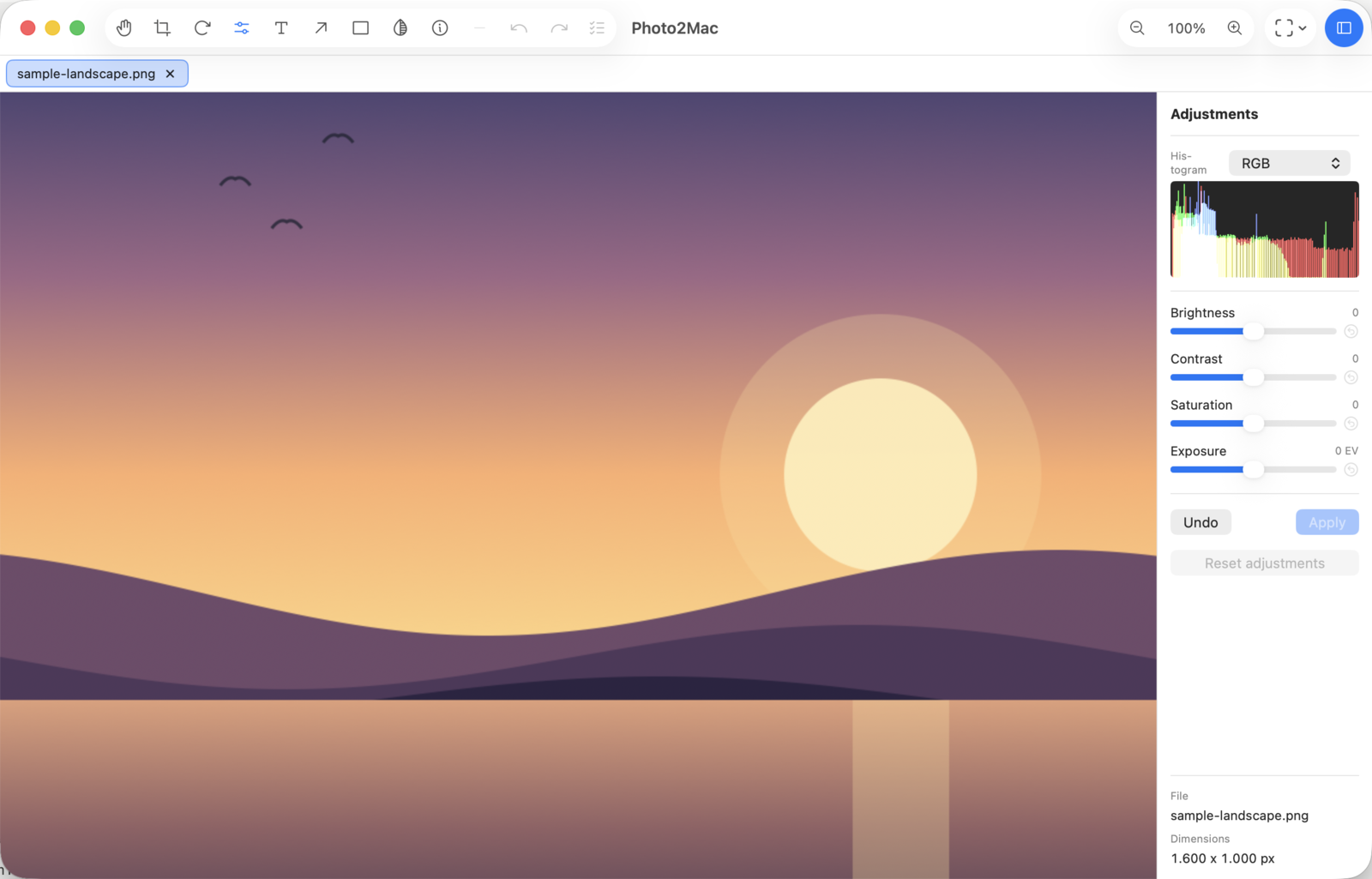
Photo2Mac Tune tool — brightness, contrast, saturation and exposure sliders with a live RGB histogram, on a sunset landscape.

Tune: brightness / contrast / saturation / exposure with a live histogram.

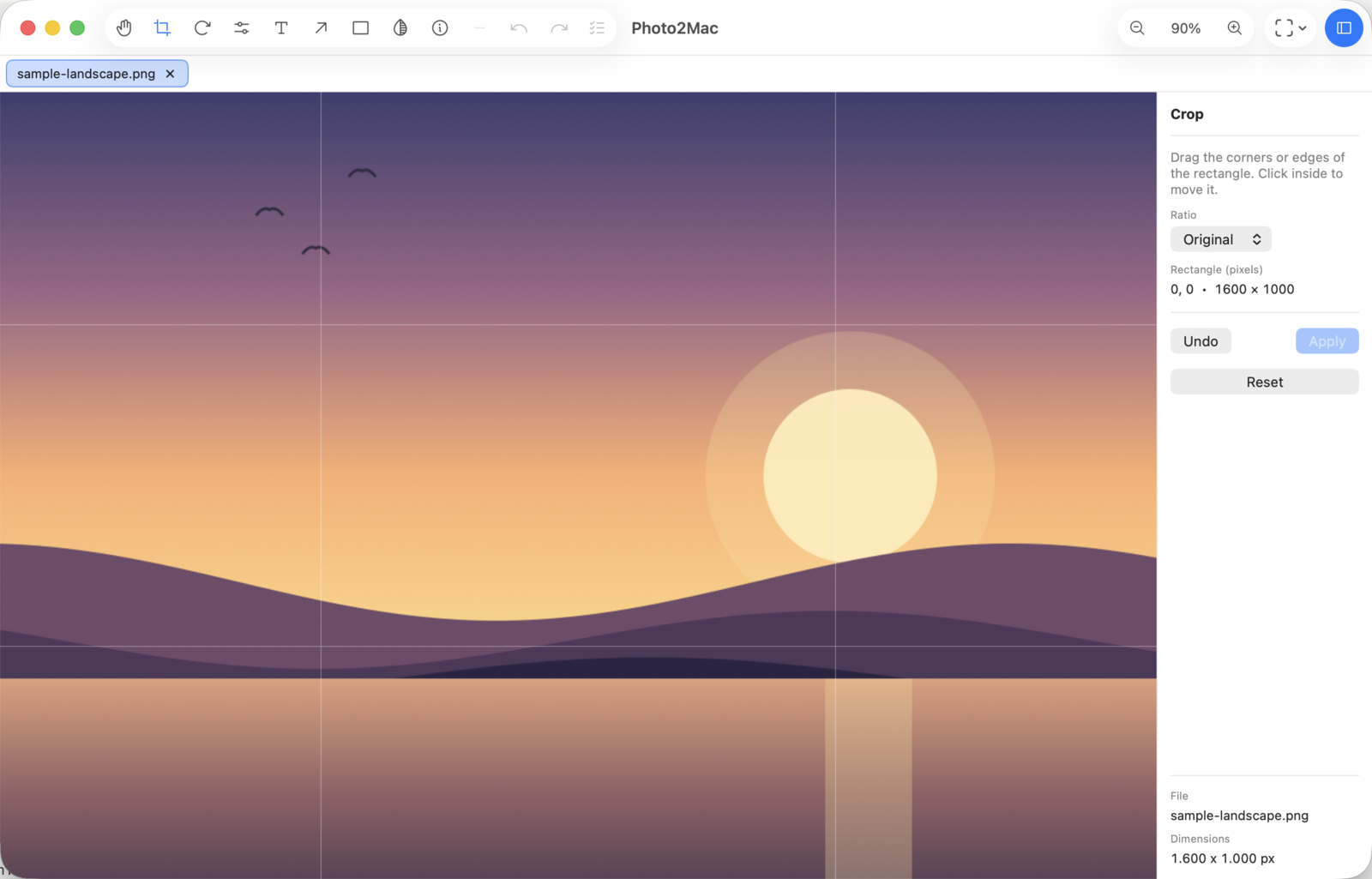
Photo2Mac Crop tool — selection rectangle with a rule-of-thirds grid and an aspect-ratio picker.

Crop · aspect-ratio picker.

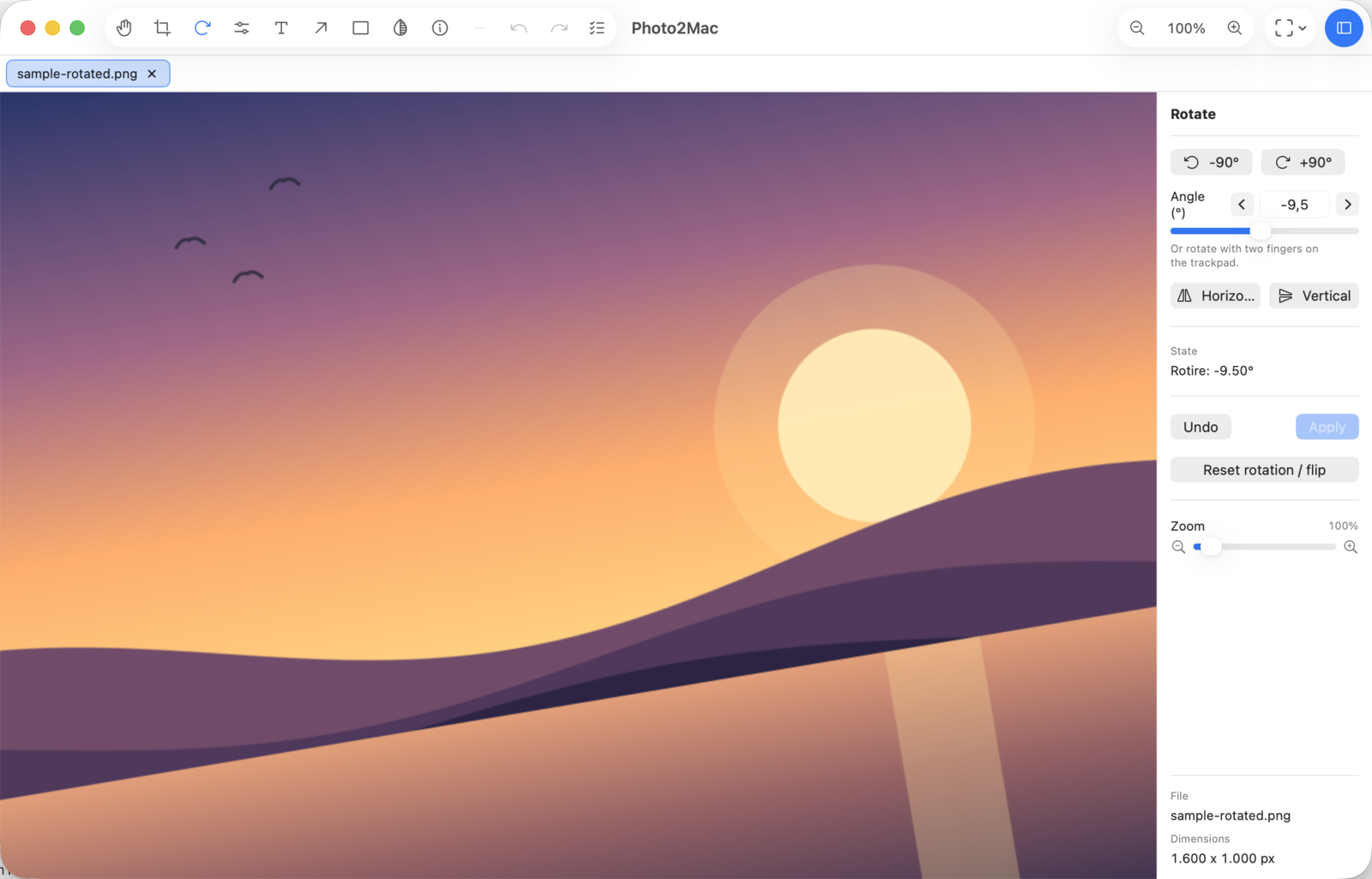
Photo2Mac Rotate tool — image straightened by a fractional angle, with presets, a precise angle field and a zoom slider.

Rotate · precise angle + trackpad.

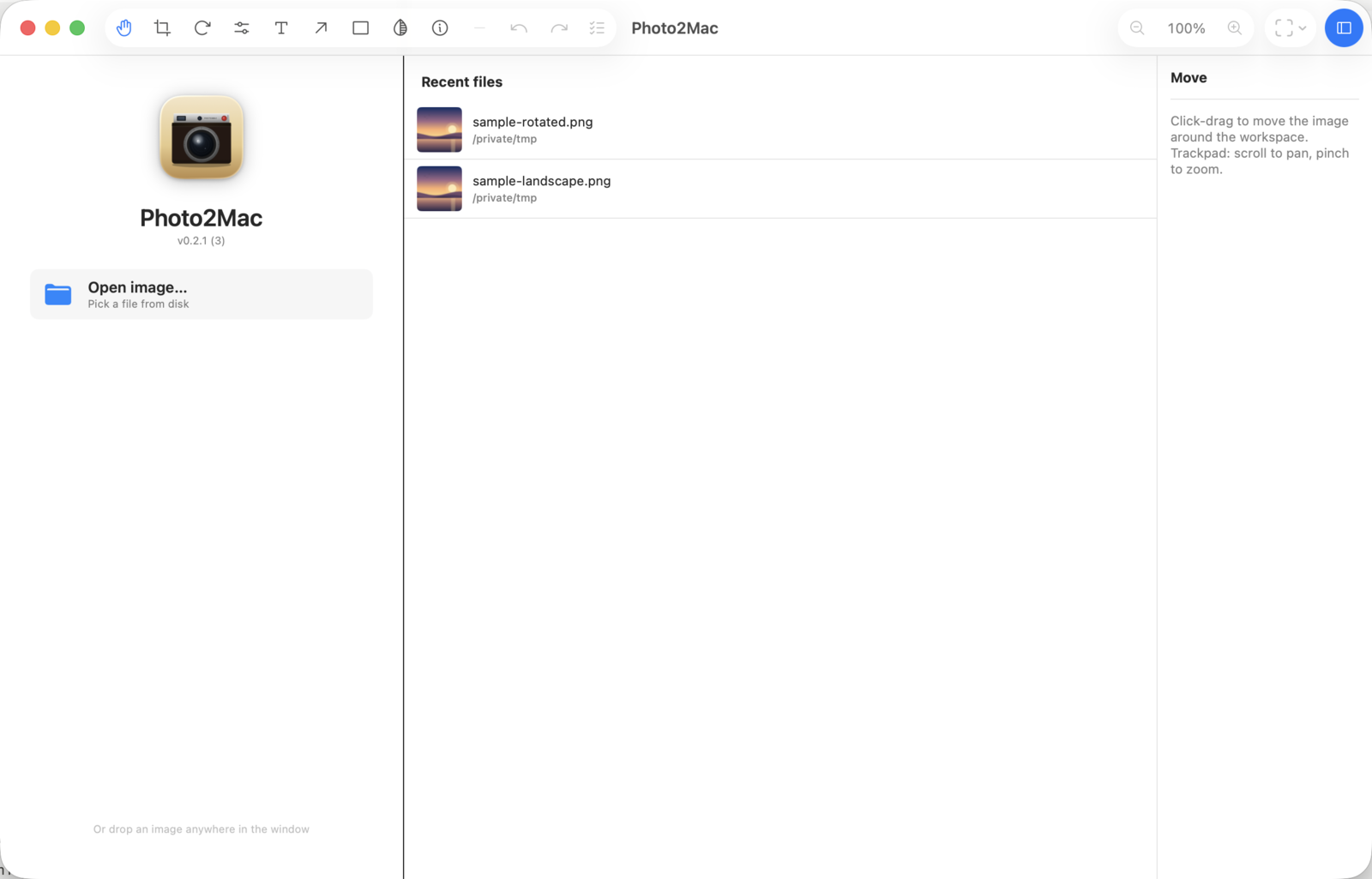
Photo2Mac welcome screen — recent files with thumbnails and an Open image button.

Welcome screen with recent files. The sample image is a synthetic gradient generated for these shots, not a real photo.

Why Photo2Mac?

Most Mac image editors either commit pixels on every adjustment (Preview, most free apps) or hide your edits inside a proprietary library (Photos, Lightroom). Photo2Mac sits in the gap: every edit is just an entry on an EditStack that Core Image renders live. Nothing is written until you Save, and what Save does is your choice: the file becomes the edited image (like Preview), the original stays untouched with the recipe in a small .p2m file beside it, or the edited file carries the original inside so you can always go back.

Every saved file records how it was written, so it is always read back the way it was saved — switching the setting never breaks what is already on disk. EXIF, GPS, copyright and the colour profile are kept.

Features

Install

  1. Download the latest .dmg from the releases page.
  2. Open the .dmg, drag Photo2Mac.app to the Applications shortcut.
  3. Open Photo2Mac.app from /Applications and use ⌘O to open an image, or drop one onto the window.
No Homebrew, no Terminal. The .dmg is about 2 MB, links only to Apple system frameworks and is notarized by Apple, so it opens like any other app. Build-from-source details are on GitHub.

The XMP edit stack

Photo2Mac is non-destructive: every adjustment lives on an EditStack rendered live by Core Image. When a save writes pixels, Photo2Mac also embeds the EditStack as XMP metadata inside the image, with a marker saying how the file was written. The marker decides how it is read back: in the mode that keeps the original inside, the stack is editable again; in the plain «save what you see» mode it is a record of what was done, never applied twice. Other apps see the pixels.

This is the on-disk format, so external tools can read or even produce one.

Namespace

The same property is written into JPEG (APP1), PNG (iTXt XML:com.adobe.xmp), HEIC (meta box) and TIFF (tag 700) via Apple's ImageIO.

EditStack JSON

{
  "rotateDegrees": 0,        // clockwise, supports 0.01° increments
  "flipHorizontal": false,
  "flipVertical": false,
  "crop": { ... },           // optional: { x, y, width, height } normalized 0..1
  "cropBasisDegrees": 0,     // rotation the crop was drawn under
  "adjustments": {
    "brightness": 0.0,       // -1 .. 1   -> CI -0.5 .. 0.5
    "contrast":   0.0,       // -1 .. 1   -> CI  0.5 .. 1.5
    "saturation": 0.0,       // -1 .. 1   -> CI  0.0 .. 2.0
    "exposure":   0.0        // -3 .. 3 EV stops (CIExposureAdjust)
  },
  "resize": { ... }          // optional: { width, height, keepsAspect }
}

Render order is fixed and applied in this sequence: flipH → flipV → rotate → crop → adjustments → resize — geometry first (so crop always operates on the rotated frame the user actually sees), then pixel adjustments, and resize last so the result is resampled once.

Also written: standard tags

So that any XMP viewer — Preview's Inspector, Metapho, Adobe Bridge, exiftool, mdls, macOS Get Info — can see what happened to the file, two well-known tags are written alongside p2m:editStack:

These values are always English regardless of Photo2Mac's UI language — file metadata is read by tools and people anywhere, so it stays locale-independent.

Example: rotate + crop

A 2.5° counter-clockwise straighten, then crop to the central 90%×80%:

{
  "rotateDegrees": -2.5,
  "flipHorizontal": false,
  "flipVertical": false,
  "crop": { "x": 0.05, "y": 0.10, "width": 0.90, "height": 0.80 },
  "cropBasisDegrees": -2.5,
  "adjustments": {
    "brightness": 0, "contrast": 0, "saturation": 0, "exposure": 0
  }
}

The matching dc:description:

Photo2Mac 0.3.0 — rotate -2.50°, crop 90%×80% at (5%, 10%)

Inspecting a Photo2Mac file from the command line

With exiftool:

# Every XMP field, including the p2m one
exiftool -XMP:all -G photo.jpg

# Just the edit stack JSON
exiftool -XMP-p2m:editStack -b photo.jpg | jq

# Human-readable summary
exiftool -XMP-dc:Description -CreatorTool photo.jpg

Full reference, including the stability policy (the 1.0/ in the namespace URI is the schema version): docs/XMP.md in the repo.

Changelog

Mirrors the GitHub releases exactly. Newest first.

v0.3.1-alpha · 2026-10-23

Automatic updates.

  • Automatic updates. Photo2Mac looks for a new version once a day and installs it only after you accept. Photo2Mac › Check for Updates… runs the check on demand, and Settings › Updates turns the daily check off.
  • The check reads a list of versions from cremenescu.ro; it sends nothing about you or your Mac. It is the only network request Photo2Mac makes.

Install: if you have v0.3.0 or earlier, install this version once by hand (download the .dmg and drag Photo2Mac.app into Applications). From here on, updates arrive by themselves. Signed with a Developer ID and notarized by Apple. Requires macOS 14 (Sonoma) or later. Universal binary (Apple Silicon and Intel).

v0.3.0-alpha · 2026-10-23 — Safe saving, save modes, resize, export, notarized

Saving you can trust, a choice of save modes, resize, export, and a notarized download.

Please update from v0.2.1 — saving in v0.2.1 and earlier could damage photos:

  • reopening a saved file applied the edits a second time, and each further save compounded them;
  • saving dropped the camera data, capture date, GPS, copyright and the colour profile;
  • an off-centre crop kept the vertically mirrored part of the image.

All three are fixed. Files saved by those versions open as already edited: their recorded edits are shown in the metadata panel and never applied again.

Saving

  • Three save modes, chosen in Settings: Save what you see (the file becomes the edited image — the default), Never modify the original (edits go into a .p2m file next to it), Keep the original inside (the edited file carries the original, so you can always go back). Each file records how it was written, so changing the setting never breaks what is already on disk.
  • EXIF, GPS, copyright, XMP from other apps and the colour profile are kept. A format macOS cannot write (WebP) is no longer silently saved as JPEG under the old name; you are pointed to Save As.
  • Save As (⌘⇧S) moves the document to the new file. Export (⌘⇧E) writes a copy in JPEG, PNG, HEIC or TIFF, with a chosen quality and maximum size, and leaves the document as it was.
  • Unsaved changes show as a dot in the tab; closing a tab, the window or the app asks first.
  • Unsaved edits are autosaved and offered back after a crash, but only while the file is the same one they were made on.

Editing

  • Resize: pixels or percent, proportions kept, long-edge presets 1920 / 1200 / 800. It is the last step, so it can be changed or removed at any time.
  • Before / after: hold the toolbar button or the \ key.
  • Folder paging: ← / → on the image or ⌘[ / ⌘] open the previous / next image in the folder, replacing the tab only when it has nothing unsaved.
  • A crop now stays on its subject when you rotate afterwards, and the flip buttons mirror the image as you see it, also when it is rotated.
  • The crop tool keeps the existing crop while it is open (saving mid-crop no longer saves the photo uncropped), works with the inspector hidden (↩ applies, esc cancels) and its handles keep their size at any zoom.
  • Grayscale photos can be edited — before, every edit was silently ignored.
  • High-resolution photos tagged at 300 dpi no longer jump in size on the first edit or report wrong dimensions.
  • The histogram reads like other editors (sRGB values; it used to look underexposed) and is computed in the background.
  • Cancel in a tool no longer restores another tab's state.
  • The unfinished annotation tools are hidden until they work.

Install: signed with a Developer ID and notarized by Apple — it opens normally, no Terminal step needed. Requires macOS 14 (Sonoma) or later. Universal binary (Apple Silicon and Intel).

v0.2.1-alpha · 2026-05-29 — Closing the window quits the app

Closing the window now quits the app.

  • Closing the window quits the app — the red close button and ⌘W now end the app instead of leaving it running. Browser-style for tabs: ⌘W closes the current tab, and closing the last one (or the only one) quits.
  • Synchronous autosave on quit — the last edit is written to disk on termination even if it happened within the 500 ms autosave debounce, so quitting right after an edit can't lose it.
v0.2.0-alpha · 2026-05-28 — Help, About, XMP docs, file associations

Help window, About panel, XMP documentation, and file associations.

New

  • Custom About panel with author, copyright and clickable GitHub / Issues / email links.
  • Help window (⌘?) with sections for overview, getting started, tools, save/persistence, the XMP edit-stack format (namespace, JSON example, render order), shortcuts, tips, and current limitations. Opens at a readable 740×820 instead of macOS's default collapsed size.
  • XMP edit-stack documentation — full reference at docs/XMP.md: the p2m: namespace, EditStack JSON schema (rotateDegrees, flipH/V, crop, adjustments) with Core Image mapping, render order, the three standard tags also written (xmp:CreatorTool, tiff:ImageDescription, dc:description), examples, and exiftool snippets.
  • File associations in Settings — set Photo2Mac as the default editor for JPEG / PNG / HEIC / HEIF / TIFF, individually or all at once. Reads and writes the same LaunchServices DB Finder's Get Info > Open With > Change All... uses.

Fixes

  • Help window no longer opens collapsed to just the title bar on first launch.
v0.1.0-alpha · 2026-05-28 — First public release

First public release.

What works

  • Non-destructive pipeline with live Core Image rendering (Metal-backed).
  • Crop with 8 handles (corners + edges), aspect-ratio picker (Original, 1:1, 4:3, 3:2, 16:9, ..., Free), directional resize cursors on hover.
  • Rotate with ±90° presets, 0.01° slider, precise angle text field; Flip H / V.
  • Tune — brightness / contrast / saturation / exposure with a live histogram (Luminance / RGB / R / G / B).
  • Edits list popover in the toolbar with per-row revert.
  • Save (⌘S) overwrites the open file with rendered pixels + embedded XMP EditStack; Save As (⌘⇧S) prompts for a destination.
  • Invisible autosave under ~/Library/Application Support/Photo2Mac/ so unsaved edits survive a tab close.
  • Welcome screen with recent files; Metadata viewer with EXIF + Photo2Mac XMP status (raw JSON optional).
  • Bilingual UI (English default + Romanian), switchable in Settings; saved files always store English-only metadata.
  • Custom About panel + Help window (⌘?).
  • Tabs, Open Recent menu, Undo / Redo (⌘Z / ⌘⇧Z) with collapsed slider drags.

What's not yet there

Frequently asked questions

Is Photo2Mac free?

Yes. Photo2Mac is free and open source under the GPL-2.0-or-later license. There is no paid tier, no subscription, no telemetry: the only network request is a daily update check against cremenescu.ro, which sends nothing about you or your Mac and can be switched off in Settings. The source and the .dmg download are both on GitHub.

What does «non-destructive» actually mean here?

The original pixels of your file are never touched until you press Save. Every adjustment — crop, rotate, flip, brightness, contrast, saturation, exposure, resize — lives on an EditStack that is rendered live by Core Image. What Save does is your choice in Settings: the file becomes the edited image, the original stays untouched with the edits in a .p2m file beside it, or the edited file carries the original inside. In the last two modes, re-opening the file in Photo2Mac gives you the edits back to keep changing.

Which formats does Photo2Mac read and write?

It opens JPEG, PNG, HEIC, TIFF, WebP and AVIF, and saves or exports JPEG, PNG, HEIC and TIFF. RAW support is on the roadmap. XMP metadata is embedded in all four output formats via ImageIO.

Does it work on Apple Silicon Macs?

Yes. The .dmg is a universal build for Apple Silicon and Intel Macs and requires macOS 14 Sonoma or later.

Do I need to clear a Gatekeeper warning before opening it?

No, since v0.3.0. The .dmg is signed with a Developer ID and notarized by Apple, so it opens normally. Versions up to v0.2.1 were ad-hoc signed and needed this once:

xattr -dr com.apple.quarantine /Applications/Photo2Mac.app
Does Photo2Mac need Homebrew or any other dependency installed?

No. The .dmg is self-contained (about 2 MB) and links only to Apple system frameworks (Core Image, ImageIO, AppKit, SwiftUI). Drag to Applications and run.

License & credits

Photo2Mac is released under GPL-2.0-or-later. UI icons are a subset of the Phosphor icon set (MIT) via Iconify.

Feedback

Bugs and feature requests: issue tracker.
Direct contact: razvan@cremenescu.ro.